Don’t want to upgrade to Windows 11? You don’t have to, but here’s what you should know

- Update Time : Thursday, October 16, 2025
- 75 Time
ZDNET’s key takeaways
- Windows 10 is reaching its end of life on Oct. 14, leaving millions of PCs without technical support or new security updates.
- However, many users will inevitably stay on Windows 10.
- Regardless of the reasoning, I’ll explain how to keep your Windows 10 PC safe long after support ends.
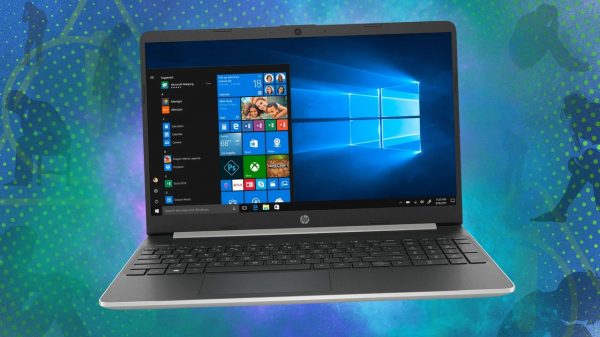
Windows 10 will officially reach its end of life on October 14, 2025, meaning Microsoft will no longer provide technical support or security updates to the OS. Chances are that by the time you’re reading this, that date has already passed, and you’re wondering what to do next.
Well, you have two options. You could either A) bite the bullet and install Windows 11 onto your PC, or B) sign up for Microsoft’s Extended Security Updates (ESUs) to receive an extra year of critical security patches. But let’s say you can’t install Windows 11 on your computer. You’ve done all the troubleshooting that you can, and it just doesn’t work. Or maybe you don’t want to upgrade and prefer to stick with Windows 10. That’s where I come in.
In this guide, I’ll walk you through some of the best methods to stay safe on Windows 10 long after its end of support. However, doing so will require you to make some important changes.
Smarter behavior

Before diving into specific solutions, I want to take the time to highlight a few behavioral changes you can make to stay safe on Windows 10. Some of these tips may seem obvious, but a quick refresher never hurt anybody.
- Don’t install random software – Be mindful of what you download and where exactly it comes from. Stick to first-party sources like apps from the Microsoft Store. I know it’s tempting to install a pirated version of Adobe Premiere Pro, but the risk of contracting malware is too great.
- Keep your web browser updated – Windows 10 might stop receiving updates, but many of your favorite apps (like your browser) will still get regular security patches. Windows 10 and Windows 11 share the same core code. I recommend using Brave, which ZDNET named the best secure browser for privacy. It comes with “several privacy-enhancing settings”, including a powerful ad blocker.
- Strengthen your account security – Having strong, unique passwords goes a long way. Make sure all your accounts utilize complex logins and use a password manager to help organize everything. Also, enable 2FA (two-factor authentication) wherever available to add an extra layer of protection.
- Back up your PC regularly: Windows 10 comes with its own backup tool, aptly called Backup and Restore, which you can find in the Control Panel. You will need an external drive with plenty of space. If you don’t have a drive, cloud storage is a great alternative. ZDNET recommends iDrive for its affordability and flexibility.
First line of defense: a smarter router

The first thing you can do is upgrade your old router. More robust models provide advanced security features that help protect not just your PC but also your entire home network from threats. Admittedly, buying a new router is one of the expensive options. Microsoft’s ESUs are only $30 for a year; however, the level of protection and utility that they provide shouldn’t be overlooked.
For specific devices, I recommend buying a Wi-Fi 6 router that supports the WPA3 (Wi-Fi Protected Access 3) encryption standard. It provides strong data encryption and better protection against certain cyberattacks that the previous generation was vulnerable to. You could opt for a Wi-Fi 7 router, but Windows 10 doesn’t support Wi-Fi 7, so you’ll be paying for a technology that you can’t use to its full effect.
ZDNET’s Charlie Osborne recommends the ASUS RT-AX1800, an affordable Wi-Fi 6 router that comes with AiProtection Classic. This is a suite of security software that includes support for WPA3, the ability to block infected devices, and a firewall.
Second line of defense: antivirus software

The biggest issue with the end of Windows 10 lies in unpatched vulnerabilities. Microsoft used to patch up these holes, but once they stop coming, it’s essentially open season. The simplest and most obvious way to protect yourself is by using a trusted antivirus program. While these apps can’t fix the aforementioned vulnerabilities, it can still stop malware and phishing attempts dead in their tracks.
We have a full list of the best antivirus apps for Windows PCs. As mentioned earlier, both Windows 10 and Windows 11 share the same core code, so what works on the newer OS will work on the old, too. Personally, I recommend Malwarebytes for its speed, reliability, and ease of use.
Third-party support
Believe it or not, but there are third-party companies that develop security patches for Windows 10 and will continue to do so after the end of life. One of the more well-known developers is called 0patch, a European company that releases targeted “micropatches” for Windows 10.
0patch offers a free plan that rolls out just 0-day fixes. There is a Pro plan that extends supports to post-EOS patches for Windows 10, Windows 7, Windows Office 2019 , and more. Prices are listed at 25 Euros a year (about $30 USD). What’s great about 0patch is they’ll provide updates for an extra five years — until October 2030.
There is a catch to all this. Because Windows 10 is a large, closed-source OS, it is very difficult for even professionals to locate and fix every single vulnerability. That’s why 0Patch only focuses on addressing important flaws — hence the name “micropatches”. These are small. That said, developers like 0Patch will be your best bet to protect your computer once Microsoft’s ESUs end on October 2026.
Why should you trust me?
I’ve been writing about software and consumer electronics for almost 10 years now, and during that time, I’ve learned how to keep my devices safe and religable. Whether I’m testing new laptops or taking care of my old PC, security has been a top priority for me.
That experience has made me picky about the tools I use to keep my data safe. I know which antivirus programs and Wi-Fi routers are the best. The advice I gave aren’t rigid rules. You don’t have to adhere to them perfectly if your budget doesn’t allow you to. Rather, they’re a foundation to help you understand what to look for in order to better protect your Windows 10 computer. The right solution depends on your lifestyle, devices, and budget.